
Pricing by hand means guessing: you raise for the trade fair, forget the bank holiday, and leave tonight’s empty room at full price. Automated pricing does the routine part for you. It starts from your base price, reads the demand of your city night by night, applies the rules you set, and writes the resulting prices to your channels. You keep the levers that matter: the minimum you will not go below, the maximum, and any night you prefer to price yourself.
Before you start
- 1Automated pricing is included from the Advanced plan up, on the plan of the listing’s owner. On the free Starter plan the switch shows an upgrade notice instead of turning on.
- 2Open the listing and go to Pricing → Automated pricing. The minimum, base and maximum price sit in the bar at the top and stay in view while you scroll through the chart and the rules. The base is what a normal night is worth; minimum and maximum are hard bounds the automation never crosses.
- 3If the listing has several rate plans (non-refundable, weekly…), mark one as the base rate plan: automated prices are written to it, and the other plans follow through their percentage deltas.
- 4Check that the listing’s city is filled in the General tab — the demand calendar and the market data are looked up by city.
Good to know: No prices yet? Turn the automation on anyway: Alberga looks at the market of your city for your kind of listing (nightly rates month by month, occupancy) and proposes a minimum, base and maximum, filling them in for you. They are a starting point, not a verdict — adjust them if they do not feel right.
Turn it on
- 1Open Pricing → Automated pricing and flip the switch to Enabled.
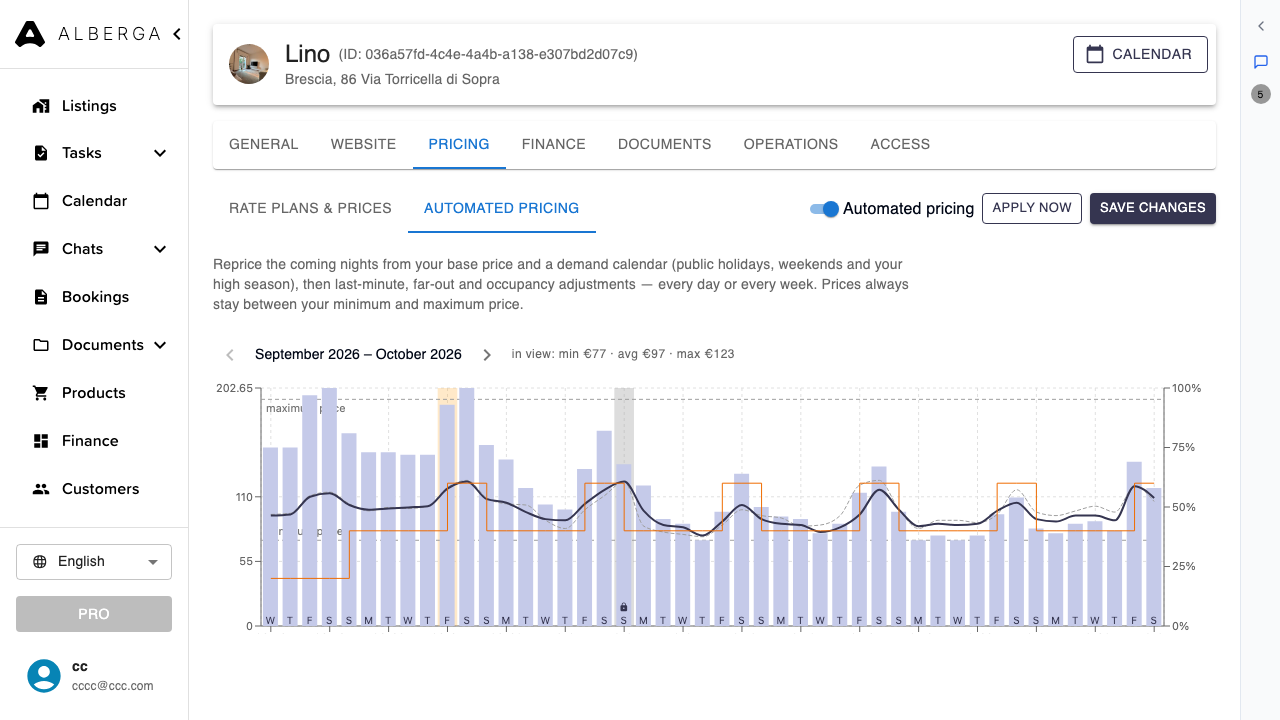
- 2The chart shows the coming months night by night: the expected occupancy of your city on the right axis, your current rate and the proposed rate the automation would write on the left axis — zoomed on your price range, with your minimum and maximum as dashed lines. Use the arrows to move month by month; hover or tap a night to see its price and what drives it: a holiday, an event in your city, your high season.
- 3Click Apply now to reprice immediately, or simply wait: the automation runs every night and reprices a full year ahead. Apply now only works with the switch on — saving the switch is what fetches the market data of your city.
- 4A ? next to each section title opens a small graph of what that rule does. It works on tap, so use it on your phone too.
Good to know: Only nights whose price or minimum stay actually changes are written, and availability is never touched — a booking is never at risk. Prices reach Airbnb, Booking.com and your other channels exactly like a manual edit. A rate plan that exists only in Alberga — such as the plan of your direct-booking site — is priced in your Alberga calendar and, of course, not sent to the channels.
How the price of a night is computed
Every night gets an expected occupancy: how full your city is in that month for listings like yours (same type, same number of guests), lifted on weekends, around the public holidays of the countries you pick under Holiday calendars (your listing’s country is preselected — add the countries your guests come from), and during your own High season periods — concrete dates with a label, e.g. 1 Jul → 31 Aug 2027 by the sea. Give a period its own minimum, base and maximum and those nights are priced from them instead. For the next two months it also checks, every week, how fast your city is filling up right now.
Alberga also knows the events that fill your city — festivals, trade fairs, concerts, the home matches of the local team. Those nights are lifted and carry the event’s name in the chart. Tell us about an event we miss and we add it for every host in the city.
Your base price is then moved up on high-demand nights and down on quiet ones, in proportion to that expected occupancy, and clamped between your minimum and maximum. That is the curve you see in the chart; the rules below refine it.
Add your rules
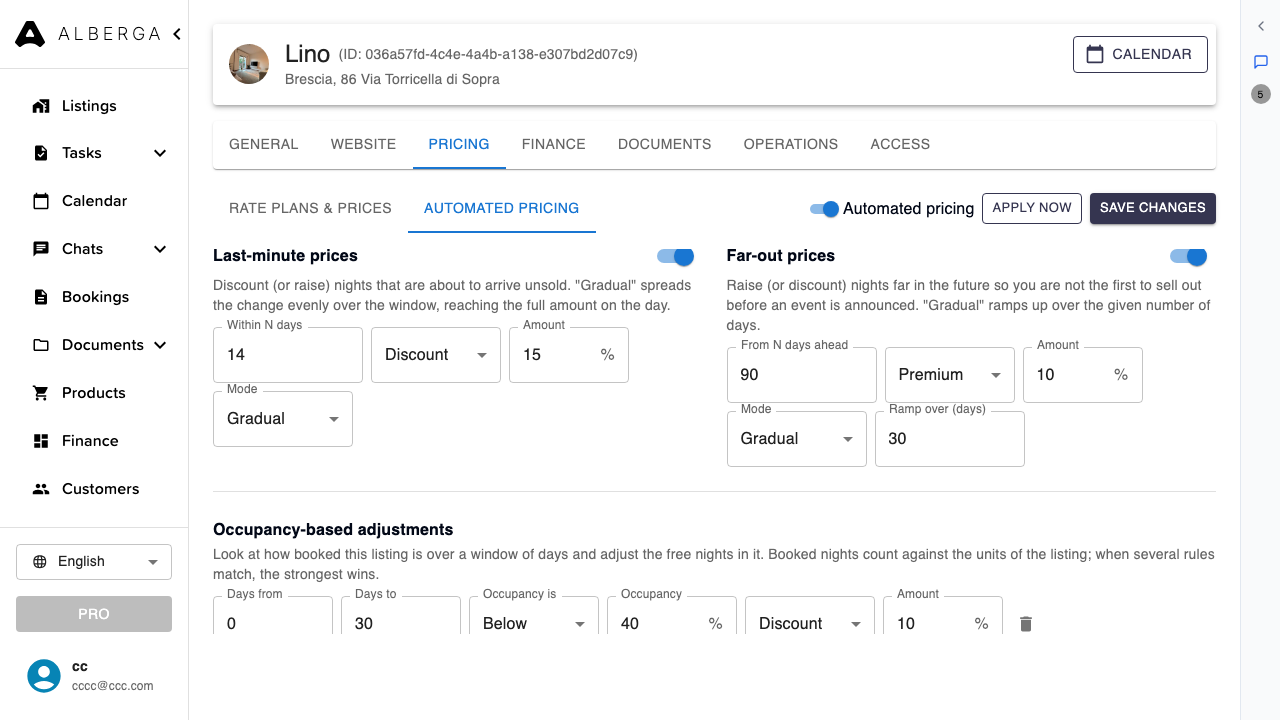
- Last-minute prices — nights about to arrive unsold get a discount (or a premium, if you prefer) within N days of arrival. Flat applies the full amount to the whole window; Gradual grows it as the night approaches, reaching the full amount on the day.
- Far-out prices — nights far in the future get a premium from N days ahead, so you are not the first to sell out before an event is announced. Gradual ramps it up over the number of days you choose.
- Occupancy-based adjustments — look at how booked the listing is over a window of days (say days 0 to 30) and adjust the free nights in it: below 40% booked → −10%, at or above 80% → +15%. When several rules match, the strongest wins.
- Minimum stay — the minimum nights on arrival, written to every rate plan: a weekday and a weekend default (weekend = check-in on Friday or Saturday), up to three last-minute rules that lower it as the date approaches, a far-out rule, and Orphan gaps for single-unit listings — short gaps between two bookings get a lower minimum so they can still be filled. The lowest and highest values you set are enforced last.
Good to know: Nothing is inferred: a rule you have not added does not exist. Start small — a gradual last-minute discount and an orphan-gap rule — and read the run history for a week before adding more.
Price a night by hand
Some nights you know better than any model — the festival your neighbour mentioned, the friend who books at cost. Click a night in the chart, or edit it in the Calendar (a warning reminds you the listing is automated), and set its price: the night is locked and the automation will not touch it again. Locked nights are listed under Nights priced by hand; Hand back to automation releases one.
You can also ask your assistant, in the Cowork chat or on WhatsApp: “Lower next weekend’s price at Viola by 10%.” It shows the change night by night and applies it after your OK. Lock those nights afterwards if the nightly run should leave them alone.
Follow what it did
Run history, at the bottom of the panel, lists every run — nightly or Apply now — with the nights whose price or minimum stay changed, before → after. Runs that changed nothing are folded together; a failed run says why. It is the place to look the morning after you change a rule.
Good to know: Automated pricing is per listing and off by default. Turning it off keeps your current prices exactly as they are — nothing is reverted.
More tutorials
Prices, manual bookings and your own booking website
Set nightly prices in the calendar, register offline bookings, publish your listing on your own direct-booking page, and keep every rate plan aligned.
Get paid: Stripe, your booking website and payment tracking
Connect Stripe once and everything can collect money — your direct-booking website, payment links, product orders — with every euro tracked on the Transactions page.
Sell extras: products, orders and customers
Build a catalog of extra services once, charge guests in two clicks with tracked Stripe links, and keep a customer book that remembers everyone.